
Handy Ableton Tip – Change a Macro Name After It’s Been Mapped.

Problem:
You may have noticed that after you map a macro knob to another macro, you can then no longer rename it either by clicking on it and pressing [CMD-R (mac) / CTRL-R (windows)] or by right-clicking it and selecting “rename” — the context menu option disappears for that macro =(
Image
Solution?
As long as you have at least one unmapped macro in the rack, click on an unmapped macro. Then press “Tab” until the macro whose name you want to change is highlighted.
You are free to rename it as you like now…sweet!
If the macro it is nested to is currently unnamed, its name will reflect the new change as well.

Image

I went a long time working in Ableton before realizing you can do this, so maybe it slipped under some other radars as well, so i figured i’d pass it along as a quick tip. If you make your own Racks all the time like me being able to rename a macro after it has been mapped if desired is quite useful.

That’s all for today… more heady packs in development.

Peace!
Handy Ableton Tip – Macro Default Positions

You already know that you can hit the “delete” key on any parameter in a device to return it to its default position (or, in Live 10, double-click it).

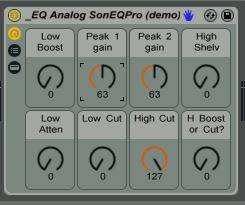
But did you know that if you save a preset as a rack and then tweak a macro (after re-opening the version you saved), you can hit “delete” to return to whatever YOU set as the default position for it?

When you hit “Delete” on a macro of a plugin (Ableton Core or VST/AU), it returns to that plugin’s default position, which cannot be changed (set per plugin device).

So like if you drop Ableton’s “Chorus” effect on a track and mess with parameters and hit “Delete” on them, they will return to the Chorus Device’s default positions for those parameters. But sometimes you may not like having those pre-chosen values as the defaults to snap back to. The solution is to use Racks!

For saved rack presets in your library, the “Delete” key on one of the 8 macro knobs will return the value of a given macro knob to the position it was set at when it was saved (the “default position”).

[Note this does NOT work with the chain selector or chain volumes. Hitting “Delete” on the chain selector returns it to 0 and hitting “Delete” on any chain volumes returns them to 0db.]

So let’s say i make a preset for a VST EQ Audio Effect and set the “Mids” to +0 Gain as default at the exact half range (63.5). Then if i tweak the mids macro up or down and want to return to 0, instead of typing “63.5” in the macro or try to line it up with the mouse, just hit “Delete”! Way easier.
~`~

1) Saved Preset
Default Macro Positions 1

2) Tweaked Macro

Default Macro Positions 2

.

.

.

3)”Delete” key snaps it back to default!

Default Macro Positions 3

.
.

.

.

(the display rounds to nearest whole #… in this case 63.5 reads as 63)

`~`

How to Organize User & Plugin Presets Like a Boss in Ableton Live Using the Hidden Architecture

Problem: Hot-swapping… have to navigate to all these different folders. Wah! So annoying. End up neglecting certain folders of presets due to their unfortunate locations. Presets get sad and lonely, and begin to wither.

Solution:
Ableton 9 has a built-in secret “Folder Architecture”. Fiddling around with how things appear in the browser i discovered that if you make a folder with the same name as one of the built-in categories (for instance: “Amp Simulation”) in your User Library Presets folders, any presets in that folder will appear in the respective folder of the same name in the “Categories” pane of the browser (instrument, drum, audio effect, or midi effect racks). Customizing this way provides more unified access to all factory and user-created content in the same location, which makes my life easier. If i want an amp coloration effect preset, for instance, i have one single folder i can open up where i see all user AND factory presets (and even vst and max for live presets) all in one nice list together, easy to hot-swap and preview amongst. How to do this? Simply save files in your user library, organized however you like, but in folders with specific names. That’s all! The text has to be verbatim. There are only certain folder names you can use, which i figured out with experimentation.  Continue reading